
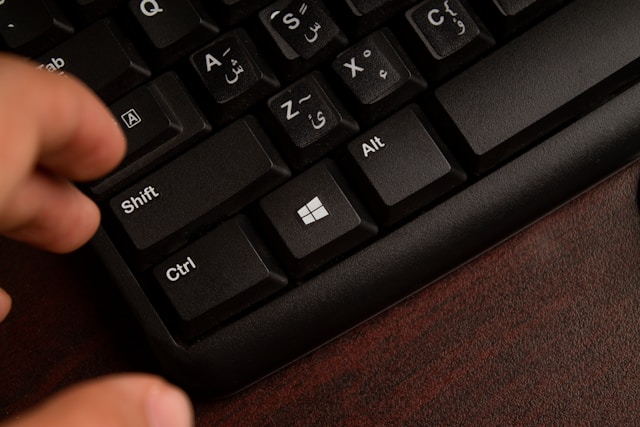

In the digital era, productivity is closely tied to how efficiently we navigate online platforms. If you’re a professional who frequently uses LinkedIn, knowing how to open LinkedIn with the keyboard can save you time and improve workflow. This article provides a comprehensive, step-by-step guide for using keyboard shortcuts and automation techniques to access LinkedIn without relying on a mouse. We’ll explore cross-platform methods, browser-specific tips, and accessibility features that help make your LinkedIn experience smoother and faster.
Understanding how to quickly open LinkedIn via keyboard commands isn’t just a neat trick—it can boost your daily efficiency, especially if you work in a field where multitasking is key. Whether you’re on Windows, macOS, or even Linux, or using browsers like Chrome, Firefox, or Edge, this guide will cover every major method in depth.
The Importance of Keyboard Navigation
Keyboard navigation is a powerful tool often underutilized by everyday users. According to recent surveys on digital productivity, users who adopt keyboard shortcuts save an average of 64 hours per year. This efficiency is compounded when accessing frequently used platforms like LinkedIn.
LinkedIn, being a central hub for professional networking, recruiting, and job searching, is a platform many users access multiple times a day. Learning how to open LinkedIn with the keyboard can significantly reduce the friction of navigating to the site, particularly for those with mobility impairments or users who prefer to avoid excessive mouse use.
Also Read This:- AlternativeWayNet Guides: The Complete Resource for Digital Empowerment
Opening LinkedIn with Keyboard on Windows
For Windows users, several techniques are available to launch LinkedIn using just the keyboard. Each method can be tailored to individual needs, from simple browser shortcuts to creating custom keyboard macros.
Using Windows Run Command
One of the quickest methods on Windows is using the Run dialog:
- Press
Windows + Rto open the Run dialog. - Type
https://www.linkedin.comand pressEnter.
This will launch your default web browser and open LinkedIn directly. If you’re already logged in, you’ll land on your homepage immediately.
Also Read This:- AlternativeWayNet Steve: A Deep Dive into Innovation, Vision, and Digital Disruption
Creating a Desktop Shortcut with Keyboard Access
For a more permanent solution, create a desktop shortcut for LinkedIn and assign it a custom keyboard shortcut:
- Right-click on your desktop, choose New > Shortcut.
- In the location field, enter:
https://www.linkedin.com. - Name it “LinkedIn” and click Finish.
- Right-click the new shortcut and select Properties.
- In the Shortcut key field, press a key combination like
Ctrl + Alt + L. - Click Apply, then OK.
Now, pressing Ctrl + Alt + L will open LinkedIn instantly, regardless of which application you’re using—provided you’re on the desktop.
Also Read This:- How to Start Blog Rivenisnet: Complete 2025 Guide
Opening LinkedIn with Keyboard on macOS
Mac users can also open LinkedIn using keyboard-based solutions that are just as effective as those on Windows.
Using Spotlight Search
Spotlight is a fast way to access any URL:
- Press
Command + Spaceto open Spotlight. - Type
https://www.linkedin.comand pressReturn.
Your default browser will open the LinkedIn homepage.
Also Read This:- Do the Driving Modes in Cadillac Lyriq Offer Different Ranges or Battery Usages? Full Explanation
Creating a Shortcut with Automator and Custom Keybinding
For a more refined setup:
- Open Automator and create a new Application.
- Add a Run AppleScript action.
- Use the following script:
do shell script "open https://www.linkedin.com"
- Save the application as “Open LinkedIn”.
- Go to System Settings > Keyboard > Shortcuts > App Shortcuts.
- Add a new shortcut, select All Applications, and set a key combination (e.g.,
Command + Shift + L).
This creates a global shortcut that will open LinkedIn directly.
Also Read This:- All About the stevethompson alternativewaynet? Exploring the Mind Behind the Digital Movement
Opening LinkedIn Using Browser-Based Keyboard Shortcuts
If you’re already in your browser, navigating to LinkedIn using the keyboard is simple and even faster when you use bookmarks.
Chrome
- Press
Ctrl + L(Windows) orCommand + L(Mac) to focus the address bar. - Type
linkedin.comand pressEnter.
You can also assign a custom keyword to your LinkedIn bookmark:
- Bookmark LinkedIn (use
Ctrl + DorCommand + D). - Edit the bookmark and set a short keyword, such as
li. - Now, press
Ctrl + L, typeli, and hitEnterto launch LinkedIn.
Firefox
The same method applies in Firefox:
- Press
Alt + DorCtrl + Lto focus the address bar. - Type the bookmark keyword or full URL.
- Press
Enter.
Bookmark keywords drastically reduce the typing needed and are stored in Firefox’s internal settings.
Also Read This:- All About the a @rivenisnet: Inside the Rise, Purpose, and Presence of a Digital Enigma
Automating LinkedIn Access with Productivity Tools
For power users, automation tools like AutoHotkey (Windows) or Alfred (Mac) can further streamline the process of opening LinkedIn with a keyboard shortcut.
AutoHotkey for Windows
AutoHotkey allows custom scripts that bind specific key combinations to actions like opening a URL.
- Install AutoHotkey.
- Create a script with the following code:
^!l::Run https://www.linkedin.com
- Save and run the script.
Now Ctrl + Alt + L will open LinkedIn any time.
Alfred for Mac
Alfred is a macOS productivity app that can launch sites with minimal input.
- Open Alfred (
Option + Spaceby default). - Type
linkedinand hitEnter.
If you add LinkedIn as a custom web search, it becomes even faster to access.
Accessing LinkedIn from Terminal or Command Line
For developers or terminal-focused users, command-line access is a useful option.
On Windows (Command Prompt or PowerShell)
start https://www.linkedin.com
On macOS and Linux
open https://www.linkedin.com
or in Linux:
xdg-open https://www.linkedin.com
This launches LinkedIn in the default web browser directly from the command line.
Accessibility Benefits of Keyboard Access
Using keyboard shortcuts isn’t just a matter of convenience—it’s an essential accessibility feature. Many users with motor disabilities rely heavily on keyboard navigation. LinkedIn’s support for such access methods ensures a more inclusive experience.
Accessibility advocates recommend consistent keyboard-first workflows to ensure equal access. In fact, according to WebAIM’s 2023 report, 97% of screen reader users rely primarily on keyboard commands.
Knowing how to open LinkedIn with the keyboard aligns with accessible web practices and supports inclusive productivity.
Optimizing Your LinkedIn Workflow
Opening LinkedIn is just the first step. Once you’re in, continue using keyboard shortcuts to navigate the platform effectively:
Alt + Shift + H– Go to HomepageAlt + Shift + I– Open My NetworkAlt + Shift + M– Open MessagesAlt + Shift + N– View NotificationsAlt + Shift + J– View Jobs
Note: These shortcuts vary slightly depending on your browser and OS. On macOS, use Control + Option in place of Alt.
Combining these internal LinkedIn shortcuts with external launching methods can give you a fully optimized, mouse-free experience.
Best Practices for Maintaining Productivity
If your goal is to reduce context switching and boost productivity, here are a few tips to maintain a keyboard-centric workflow:
- Memorize one or two consistent keyboard shortcuts for launching key apps.
- Avoid over-customizing unless necessary. Simplicity leads to consistency.
- Use browser sync features to maintain bookmarks and shortcuts across devices.
- Document your custom shortcuts if you switch devices often.
- Leverage built-in OS utilities like Windows Task Scheduler or macOS Launch Services for automation.
These best practices align with digital hygiene standards recommended by productivity experts.
Conclusion
Mastering how to open LinkedIn with the keyboard is a small but powerful step toward a faster, more efficient digital routine. Whether you use Windows, macOS, or Linux, and whether you prefer browser bookmarks, operating system shortcuts, or automation tools, there is a method tailored to your workflow. Beyond saving time, keyboard navigation supports accessibility and encourages better multitasking—skills that are increasingly essential in today’s work environment.
By incorporating the techniques outlined in this guide, you’ll minimize friction in your professional networking activities and enhance your overall productivity. With a few simple setups, you can access LinkedIn instantly and seamlessly—no mouse required.
FAQs
1. Can I open LinkedIn with the keyboard without using a browser?
You still need a browser, but you can use tools like AutoHotkey or Automator to launch it with keyboard-only input.
2. Is it possible to assign a global keyboard shortcut to LinkedIn?
Yes, using system-level tools like Windows shortcut properties or macOS Automator with custom keybindings.
3. Are these methods secure?
Yes, they open LinkedIn through your default browser and use system-allowed scripts or shortcuts—nothing invasive.
4. Can I use these shortcuts on mobile devices?
Mobile platforms don’t support global keyboard shortcuts the same way. However, Bluetooth keyboards paired with tablets may allow similar functionality within the browser.
5. What if LinkedIn doesn’t open with my shortcut?
Check that your shortcut isn’t conflicting with other apps, and ensure the URL is entered correctly. Also, verify your browser is set as the default application for web links.
Visit For More Information:- Virtuals Magazine